Get paid in your app with Whop
Your Whop store, your key given to Base44, then your test purchase. About ten minutes, no technical settings.
In short
Whop takes payments for your app, with no company needed to start, and Apple Pay and Google Pay. You create your store, you create a key, you give it to Base44 when it asks, then you make a test purchase. Your coach gives you the prompt that does everything else.
Before you start, your app must be published on Base44 and work up to the blurred result.
Step 1 · Create your Whop store
- Create your Whop account.
- Tap Create a business and give it your app's name.
Step 2 · Create your key
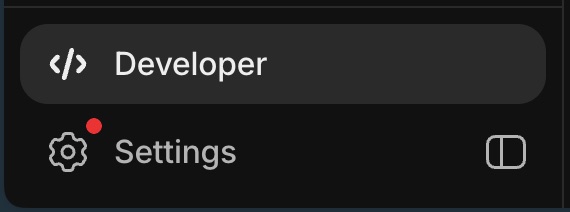
A key is a secret code that lets your app talk to your Whop store. In your store, open Developer, at the very bottom of the left menu.
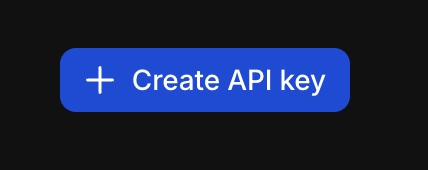
Tap Create API key.
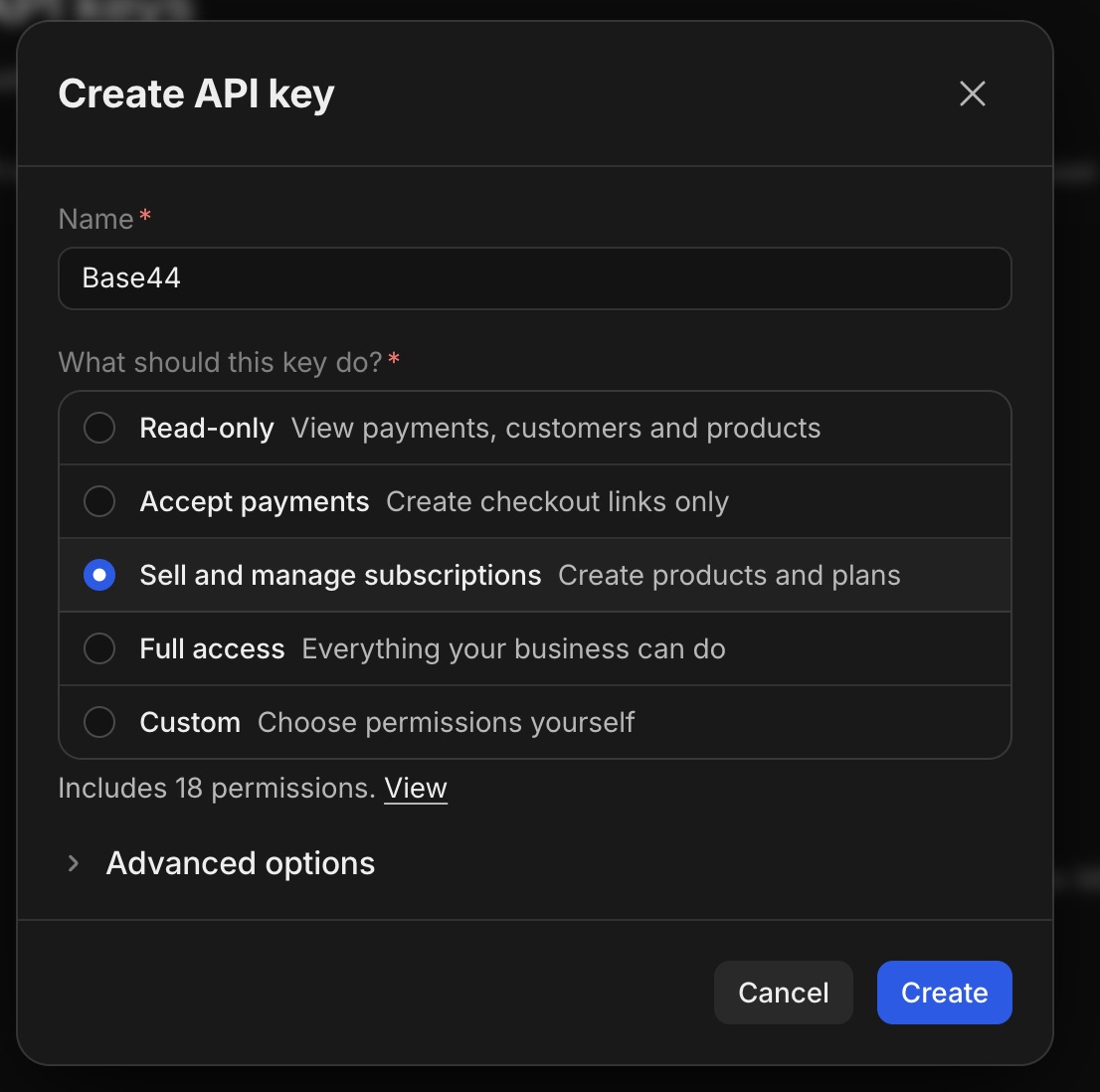
- In Name, write "Base44".
- In What should this key do?, pick Sell and manage subscriptions.
- Leave the Advanced options alone and tap Create.
- Copy the key that appears. Whop only shows it once.
Step 3 · Give your key to Base44
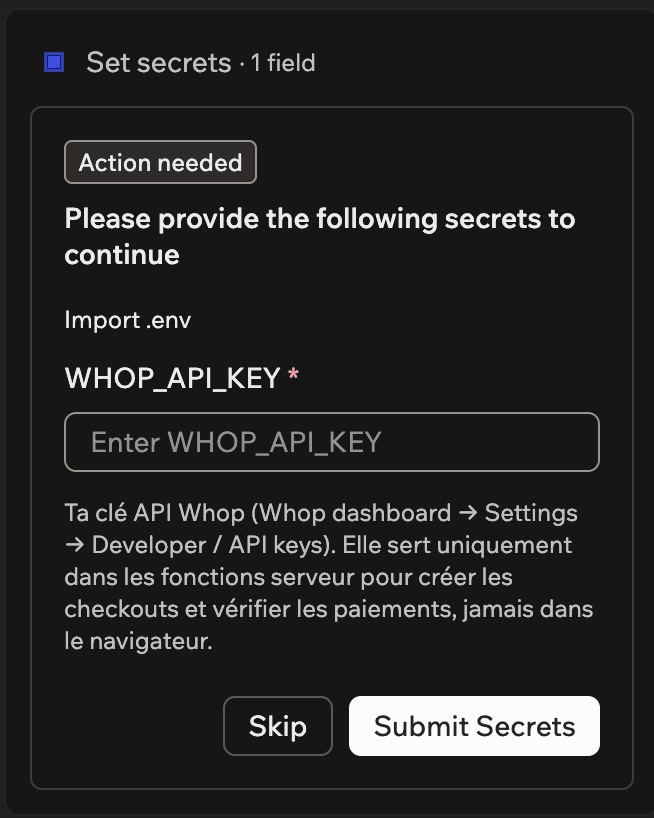
Paste the payment prompt your coach gave you into Base44. Base44 asks for your key by itself, in a Set secrets box. Paste it into the WHOP_API_KEY field, then tap Submit Secrets.
Step 4 · Make your test purchase
- Tap Publish in Base44, then open your published app. Payment doesn't work in the preview.
- Open your payment screen and tap Create a 100% test code. Only you see this button.
- Pick an offer. On the Whop page, tap Add promo code and paste your code.
- Check that the total drops to €0, then confirm.
- You land back in your app, unlocked. Send a screenshot to your coach.
This successful test purchase is what gives the green light to post your first video.
If you get stuck
- An error shows under the payment button: take a screenshot and send it to your coach. Whop's message tells them exactly what to fix.
- "Authentication failed": the key comes from another store, or it was copied wrong. Create a new key in the right store and give it to Base44 again.
- Tax is added on top of the price on the Whop page: ask your coach, they'll give you the fix to show prices with tax included.
Getting your money
You can sell as soon as your store exists. To withdraw your money, Whop asks for an identity check (an ID and a selfie) and a bank account.